
To play Cold Reads online, you need to see both the words of the script and the faces of your fellow readers. There are three ways to do this. You can print out paper copies of the script and view the faces on your device (not recommended); or you can use two devices, whether PC/Mac desktop or lap, tablet, or phone. The third option lets you see both words and faces side by side on a single screen, as shown below.

To Enter the Room
If you already have the ZOOM link, scroll down to Download the Script. Otherwise, follow these steps:
At the time appointed for the read, visit Cold Reads/Online. The screen below will appear.
- Click More (circled in red in the figure below). A popup menu appears.

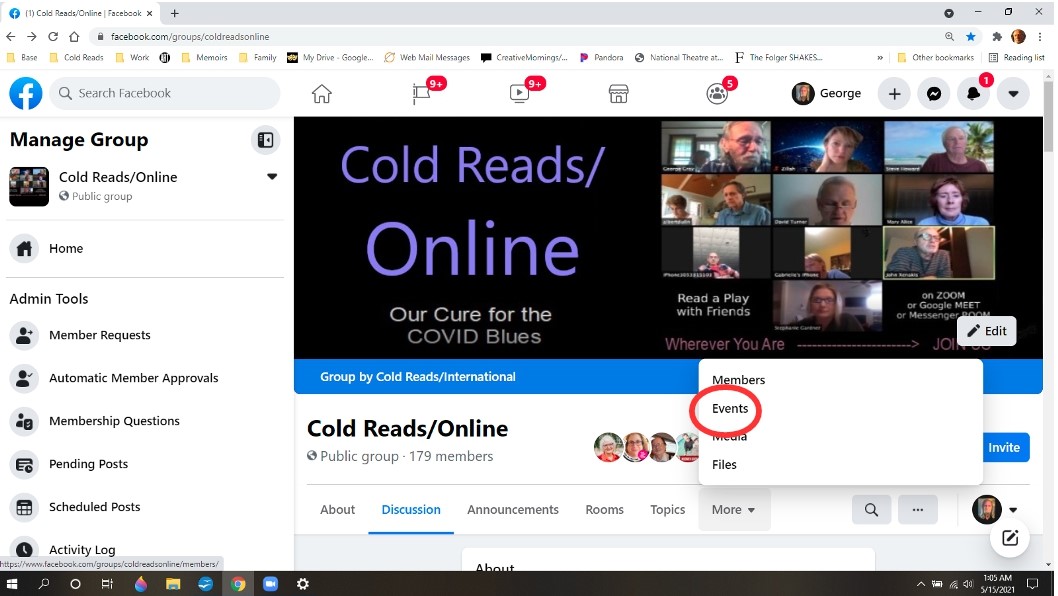
2. Click Events. No change appears on the screen.
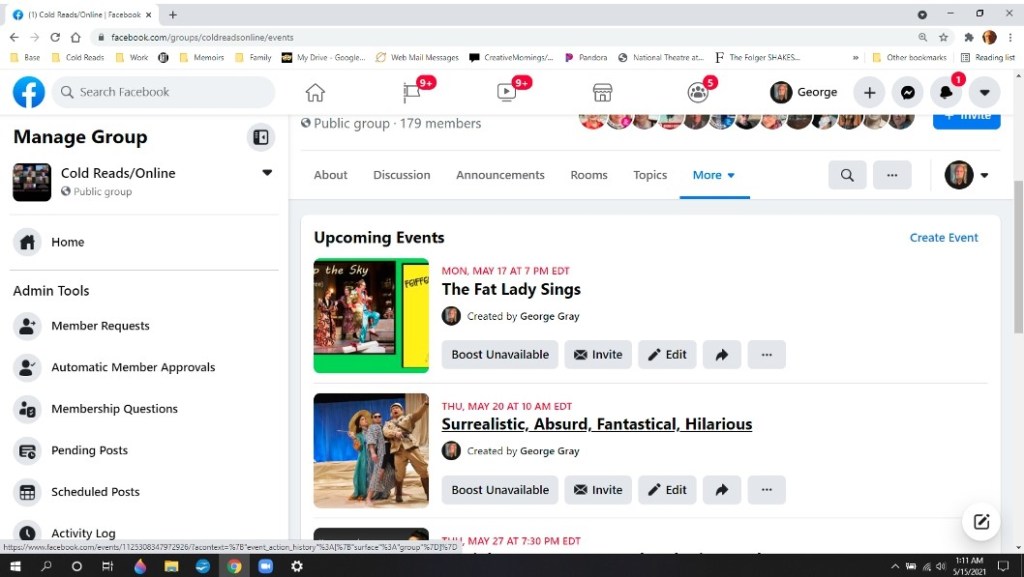
3. Scroll down to reveal the events.
4. Click on an event. The Event post appears.
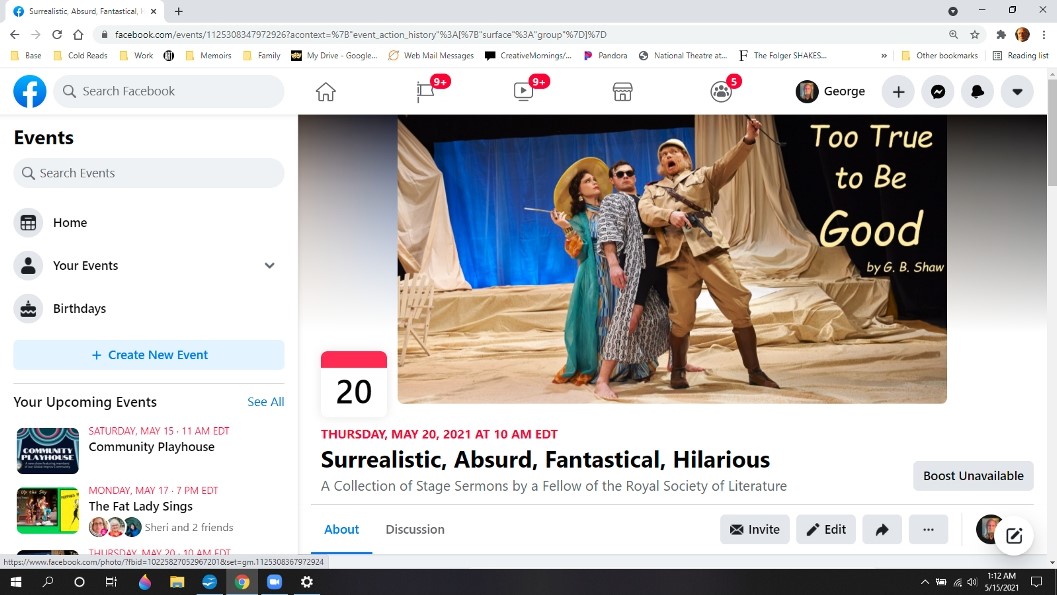

5. Scroll down to reveal the details, and click the ZOOM link.
NOTE: If you don’t have a ZOOM account, you will be prompted to sign up.
At this point you may receive a page with a notice to wait in the Waiting Room until the Host lets you in. It will also prompt you to check your audio, to make sure it’s on loud enough to hear.
6. When the Host admits you, the image will prompt you to Join with Audio. Be sure to click this option to hear and be heard.
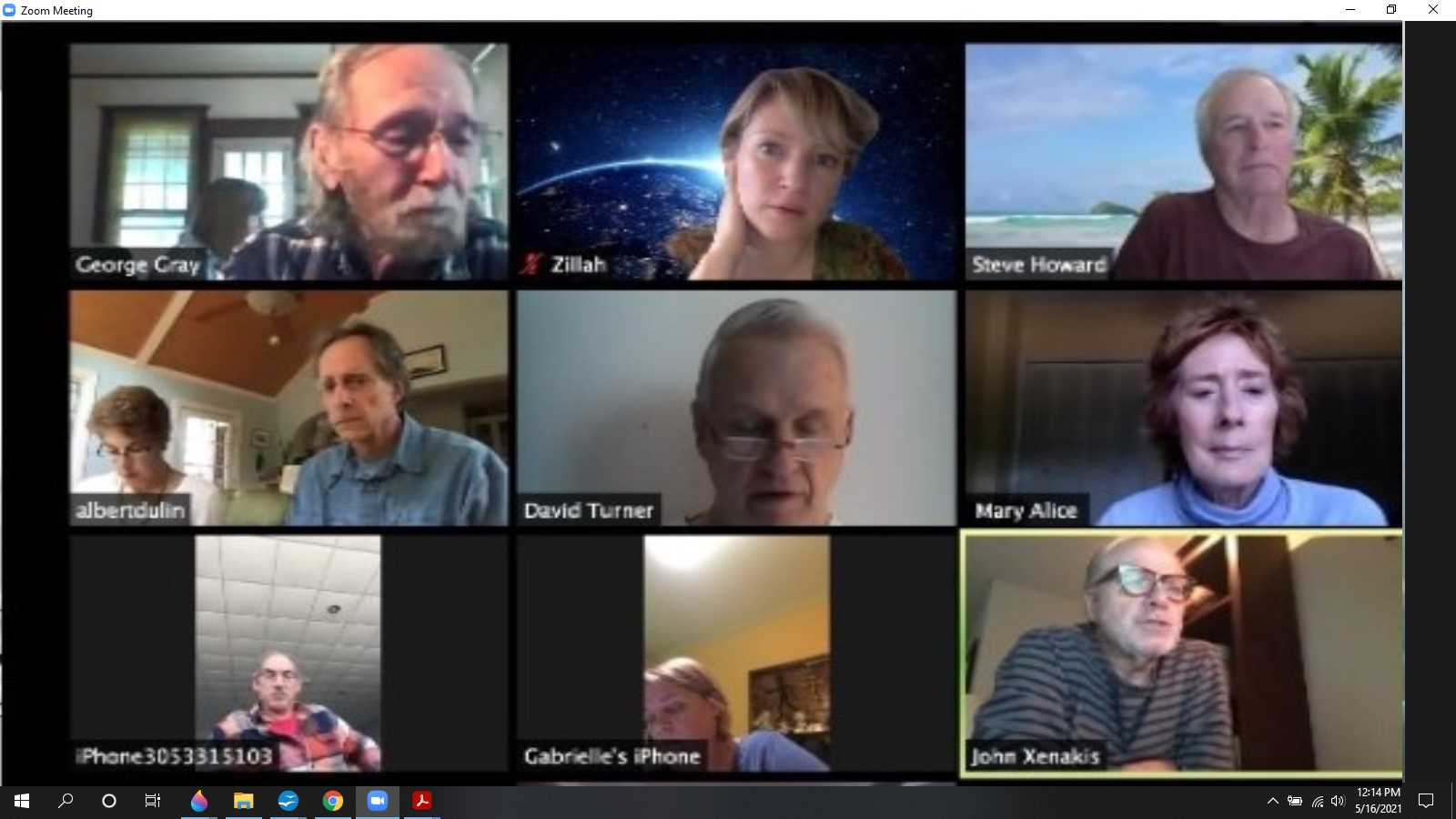
The ZOOM window appears on the right of the screen, with the host and other readers.
Download the Script
The easiest way to send a script is via URL through the ZOOM chat line. Scripts in DOC format are not compatible with chat, and must be downloaded via email.
If you are not using Zoom chat to download, skip to step
1. Hover the cursor over the window to display the icons at the bottom, and select More. A popup window appears.

2. Click Chat. A white sidebar appears. When the Host sends the link, it will appear at the top.

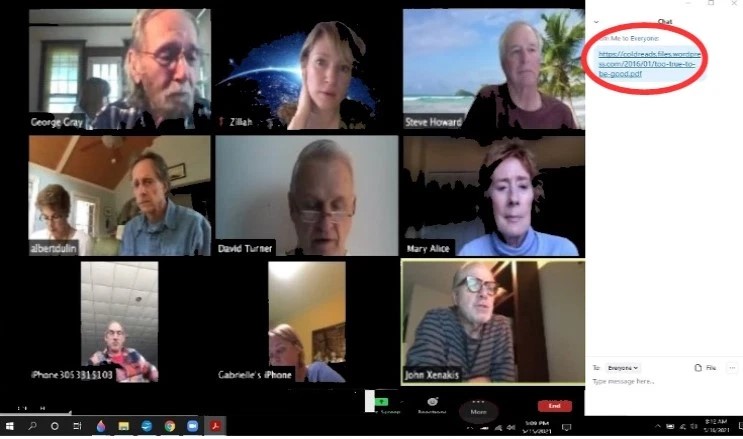
3. Click the link. The screen displays the script, hiding the ZOOM room. Don’t worry, it’s still there.

4. Click View in Acrobat in the upper right corner. The script appears in Acrobat Reader. Save it to your device.

5. Close the sidebars to create space by clicking the arrows circled in the illustration above.
Three icons appear In the top right corner of every window (see below). The one in the middle toggles between a full page and a reduced-size “floating” one, which is used to split the screen. If your window shows one square, your window is already a floater. Skip step 7.


7. Click the 2-square icon in the upper right corner to create a floating window.
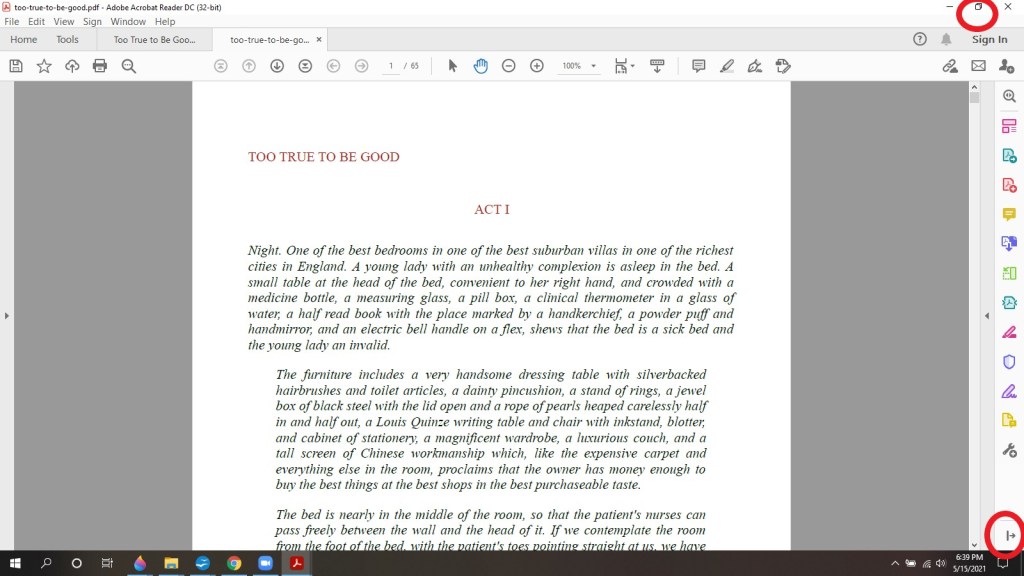
8. Another arrow shows up at the lower right. Click it to free a little more space.
9. If the typeface is too small to read, change the percent figure. You can click on the number to enter a specific percentage or click the down arrow beside it to display a dropdown menu with options. 100% is usually large enough; more than 125 and the page is crowded.

Split the Screen
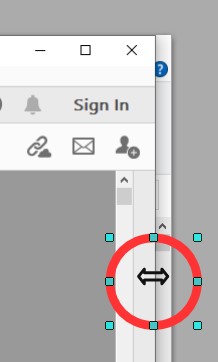
1. Position the cursor over the right border of the so that it changes to a double arrow, and drag it to the right edge of the text, revealing part of the ZOOM window and its sidebar

Be aware that once this is done, two overlapping windows are open. You can move from one to the other by simply clicking the cursor in the one you want. The next step takes place in the ZOOM window.
2. Now it’s time to close the chat. In the ZOOM window, click the almost invisible down arrow at the upper left of the sidebar in the figure below.

3. The full ZOOM window now covers part of the script, and a drop-down menus lists Close and Pop Out. Click Close.

4. Note that the ZOOM window still covers the script, but there is now space to the right. Position the cursor over the top bar of the of the Zoom window and drag it into place as shown below.

21. In the Acrobat window, use the cursor to drag the right border until the full script appears.

22. In the ZOOM window, grab the left margin and drag it to the right until the scroll bar in the Acrobat is visible.
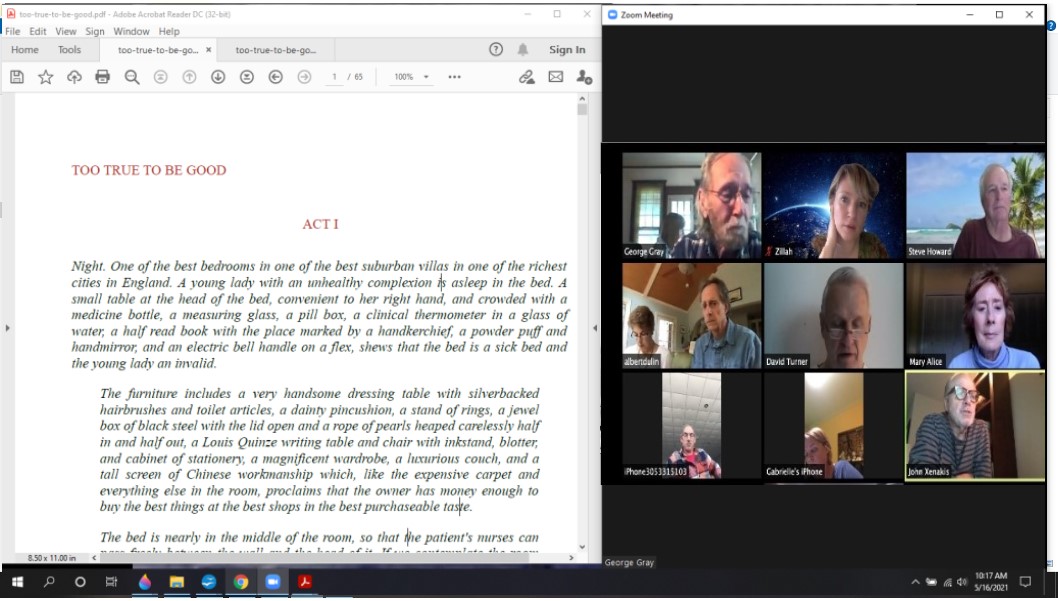
Click on the script and you’re ready to read.
 Cold Reads/International